Release 1.3.0
covdbg 1.3.0: AI coverage, HTML reports, and simpler licensing
After an extended testing phase, covdbg 1.3.0 is our official release. Thank you to everyone who tried the earlier versions, shared feedback, and helped us improve the product.
This release gives you more ways to use the coverage you collect: a built-in MCP server for AI coding agents, HTML reports you can open and share, and a simpler licensing system that replaces the previous model completely.
The starting point stays familiar. covdbg measures your existing Windows x64 executable with its matching PDB files. You do not need a separate instrumented build.
In this release: AI coverage · HTML reports · Simpler licensing · Upgrading
AI coverage with MCP
An AI coding agent can write tests. With covdbg's MCP server, it can also see which paths those tests exercised and where coverage is still missing.
The server is built into covdbg. Connect your MCP-capable client to:
covdbg mcpThe agent can read configuration guidance, discover executables, start a coverage run, and inspect the results. It can rank files by uncovered lines, read untested source with surrounding context, and query the coverage database. After editing a test with its own coding tools, it can run coverage again to check the change.
- 01MeasureRun your real tests
- 02InspectFind uncovered paths
- 03ImproveAdd tests. Measure again.
For example, ask your agent:
Read the covdbg guide and measure our test suite. Find an uncovered error path in our code, add a test with meaningful assertions, and run the tests again. Report the test result, the coverage change, and anything still untested.
The MCP server provides measurements and source context; your coding agent makes the edits. Review both the tests and their results. A covered line alone does not tell you whether an assertion is useful, and a successful coverage run does not mean the tests passed.
The server runs locally, but the connected AI client's settings determine where returned source context is processed.
Set up MCP or try the AI quick start.
Keep the results close to your code
The VS Code extension remains part of the workflow. Run tests from Test Explorer and review covered and uncovered lines in the gutter. Whether you wrote the tests yourself or worked with an agent, you can inspect the result in the same editor.
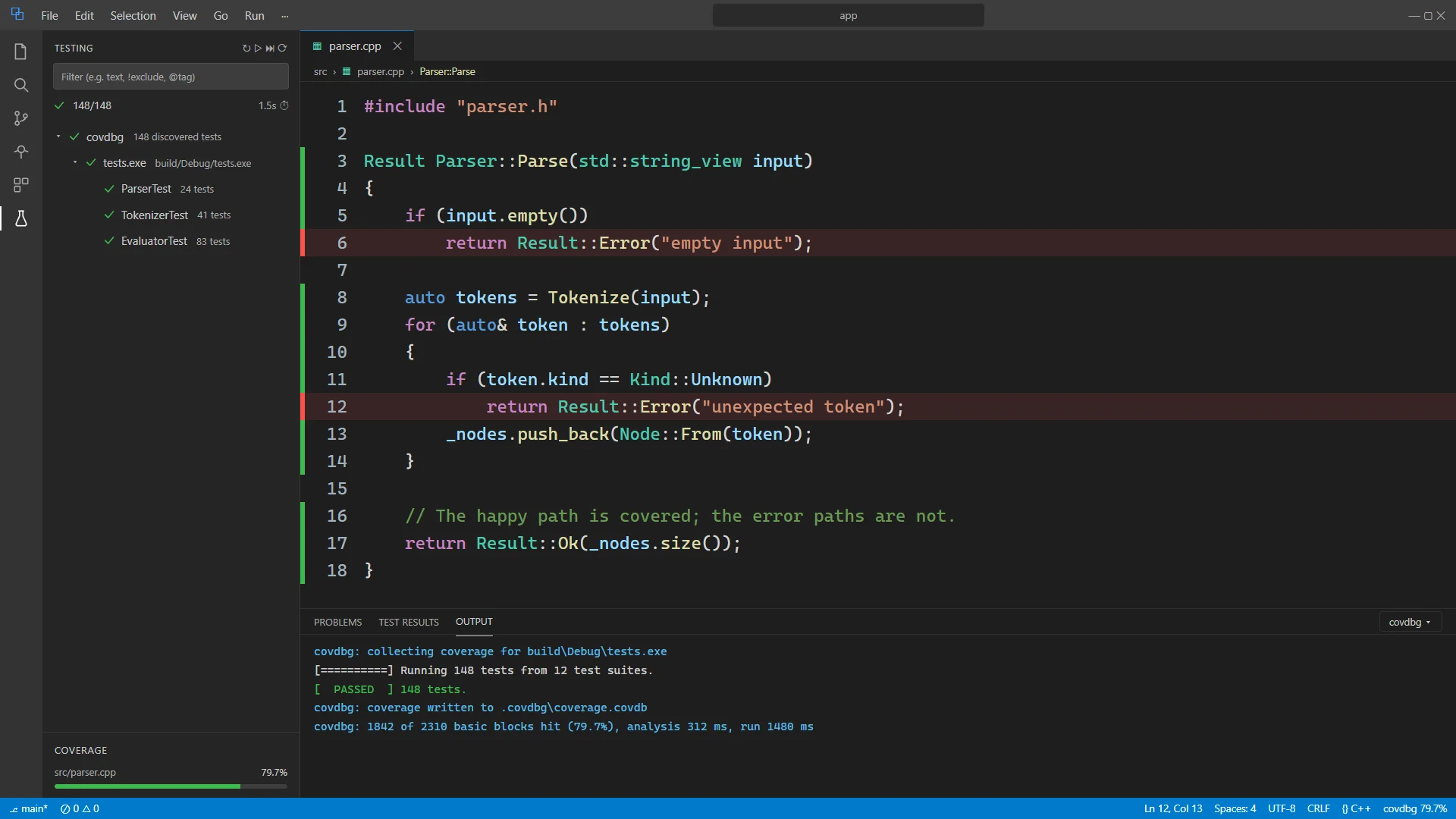
Read the workflow
Run a test or a suite from Test Explorer. Coverage gutters identify lines that ran and lines that did not. Per-file coverage helps you find the untested paths while the code is open.
Test Explorer → Run tests → Inspect coverage guttersHTML reports for your team
You can now export a coverage database directly to a self-contained HTML report:
covdbg convert -i coverage.covdb -f HTML -o coverage-htmlOpen coverage-html/index.html in your browser. Browse and filter files, review execution counts alongside source, and navigate between uncovered lines. The report includes its assets and works locally without a report server or a CDN.
Share the whole output folder with a colleague, keep it as a CI artifact, or publish it to a static host. Source is read when you export, so use the checkout that matches your coverage run. The report contains source text; choose its sharing location accordingly.
LCOV and GCOV exports are still available. Use HTML for a browser-based review and LCOV for integrations such as Codecov. These formats come from the same coverage database.
Read the HTML report guide or compare report formats.
Sign-in replaces the old licensing flow
1.3.0 completely replaces the previous licensing system. There is no license key to fetch or separate demo mode to activate. The old --demo and --fetch-license options are removed.
For local development, sign in once on your machine:
covdbg loginThis opens the browser for sign-in. Your credential is stored in Windows Credential Manager. Then run covdbg with your usual configuration and executable:
covdbg -c .covdbg.yaml -o coverage.covdb tests.exeUse covdbg whoami to check the signed-in account and covdbg logout to sign out. You use the same download across all plans:
- Public repositories: free for signed-in developers.
- Personal use: free for one private repository at a time per person. You can switch repositories at any time.
- Teams: $12 per developer per month, covering the team's private repositories and CI. Manage seats and invitations at app.covdbg.com.
For unattended CI runs, set COVDBG_PROJECT_TOKEN using your CI platform's secret settings. The project token replaces interactive sign-in. For private code, team seats cover the commit authors; the token is not an unlimited shared developer account.
Your coverage commands remain the same in CI. Export LCOV and upload it to Codecov, or save the new HTML report with the build artifacts.
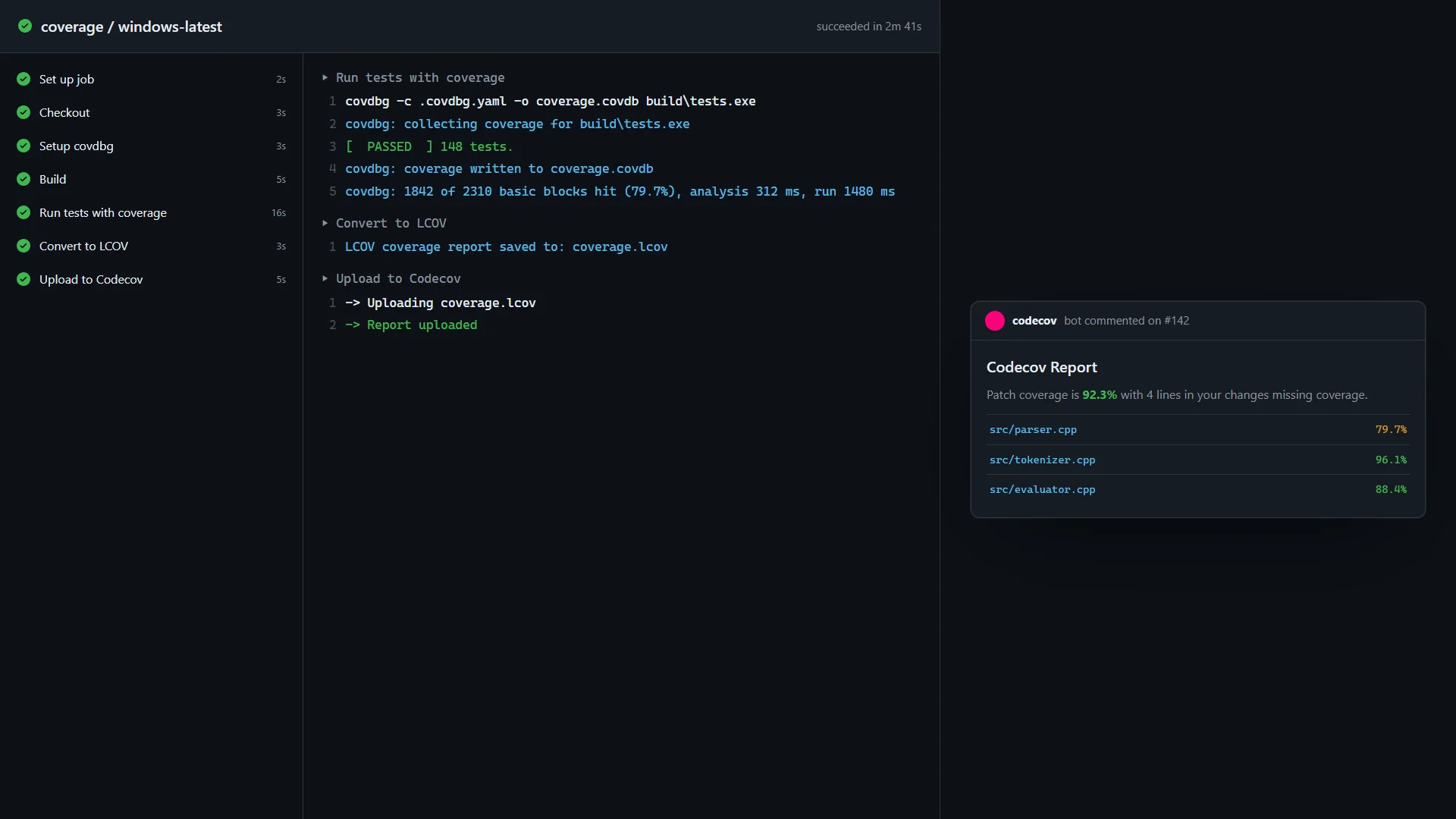
Read the workflow
Use a project token to run covdbg in your pipeline. Export LCOV and upload the report to Codecov to see coverage on the pull request.
Run tests → Export LCOV → Upload coverageSee pricing for the plans and the licensing FAQ for switching repositories, seats, offline use, and CI behavior.
Moving to 1.3.0
- Install the updated covdbg release and update the VS Code extension if you use it.
- Remove
--demo,--fetch-license, and the old license-fetching steps from scripts and editor tasks. They are not part of the new flow. - Run
covdbg loginon development machines. For CI, create a project token and store it asCOVDBG_PROJECT_TOKENin your pipeline's secrets. - Check your repository and team settings at app.covdbg.com, then run your existing coverage command.
- Connect your AI client through MCP or export an HTML report when you want to try the new workflows.
Earlier release articles describe the licensing available at the time. For 1.3.0, follow the current setup and licensing documentation linked here.
Try it with your project
Download covdbg and follow the quick-start guide. If you need help updating a script or setting up your team, email our support team to open a support ticket.
We look forward to seeing how you use it.